These days, managing stock manually is a very difficult task. Picking up a manual book and writing stock inward entries and stock outward entries often leads to mistakes. The simple solution to this is a stock-tracking template, which makes your work much easier and is simple to handle.
I have designed this template, which is completely free and easy to use. You simply need to enter your stock inward and outward entries, and the remaining balance will be shown automatically. You can use this template in both Microsoft Excel and Google Sheets.
Why Small Businesses Need Inventory Tracking
Stock mismanagement causes losses for businesses. Sometimes items go missing, and sometimes you end up over-purchasing. That’s why I have brought this Excel inventory template for you. With it, you will be able to make accurate entries, and the chances of mistakes will also be reduced.
This template is for small business owners—whether you are a freelancer, have an e-commerce store, or even an offline shop, this template will make your work much easier. With the stock inventory template, your business will stay organized, as it clearly shows which product came in, when it went out, and how much is remaining.
For example, if someone has a mobile shop, he often don’t know how many mobiles arrived and how many have already been sold. There are many brands as well, so it becomes difficult to track how many units of each brand came in and how many were sold. That’s why, by using this template, you can easily track everything, and all the calculations will be done automatically.
Features of This Free Inventory Tracking Template
Stock Inward Section:
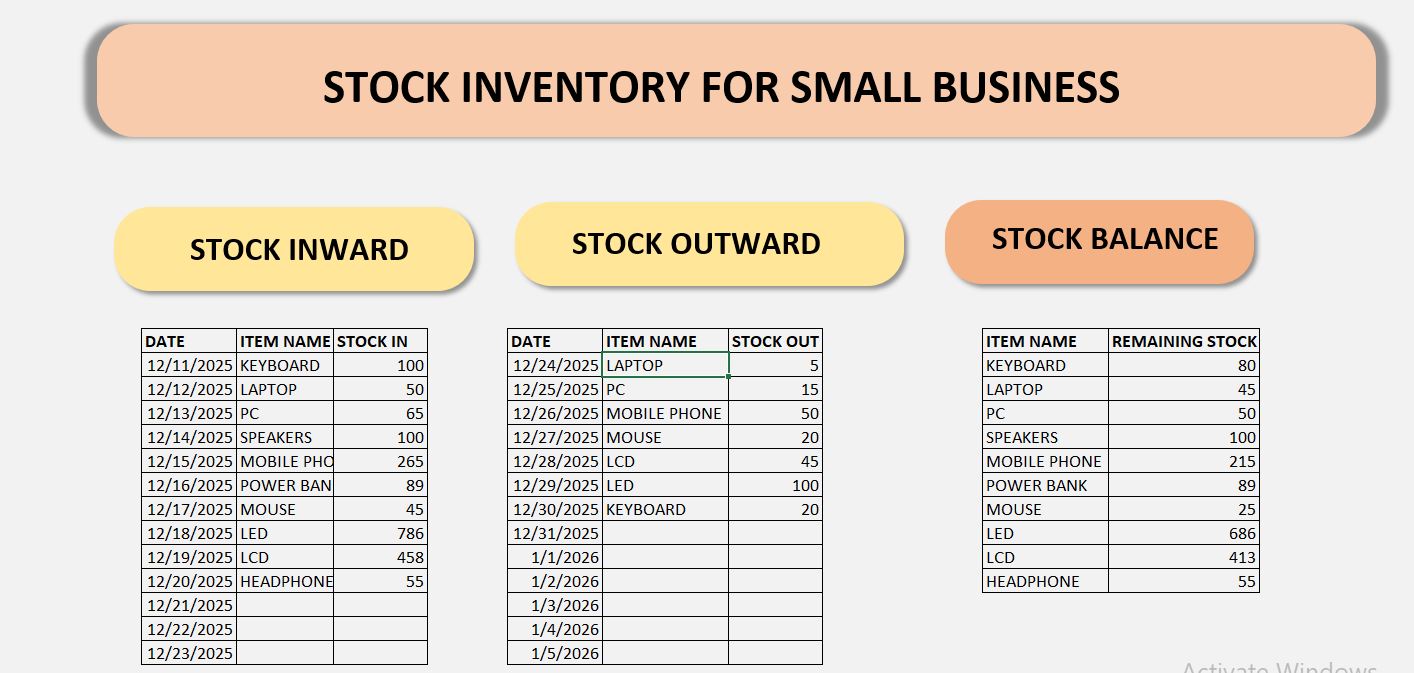
In this section, there are a total of three columns: Date, Item Name, and Stock In. Whatever stock the user has available must be entered in the Stock Inward section along with the date, so that the stock can be tracked by date.
Stock Outward Section:
This section also has three columns: Date, Item Name, and Stock Out. In the Date column, you have to enter the date on which the stock went out, along with the item name and the quantity that was taken out — for example, 3, 4, or 5. This is all the user needs to do in the Stock Outward section.
Stock Balance Auto Calculation Section:
In this section, the stock balance will be auto-calculated. For example, the total stock from the Stock In section and how much stock has gone out will be used to show the remaining balance for each product by name. This helps the user easily see which product has reached zero stock, so he can add more stock in the Stock In section as needed. A SUMIF formula has been applied in this section, which makes everything automatic. This is the only formula used in the entire template.
Excel-Friendly & Printable Design:
This template is neat and clean, printable, and fully compatible with Excel. It is beginner-friendly, with no complicated formulas. The user just needs to download this Inventory Management Template and start using it.
How to Use This Template
Step 1: Download & Open
This template is completely free and very easy to download. The user just needs to click on ‘Download Inventory Management,’ and the Google Sheet will open. From there, you can download the template in Excel format.
Step 2: Add Daily Stock In & Out
The user needs to add stock on a daily basis along with the date, and at the end of the day, when closing the shop, they should make the Stock Out entries. This way, the user will easily know how many items were sold that day and also the remaining stock balance, so they can purchase stock accordingly.
Step 3: Monitor Remaining Stock
By looking at the balance column, the user can instantly understand how much stock is remaining. This is helpful for making purchasing decisions.
Benefits of Using a Digital Stock Template
Reduce Errors
A digital inventory record reduces human error and prevents any miscalculations.
Save Time & Boost Productivity
This template saves time for busy small business owners, and all the data is available in a single sheet without any extra effort.
Better Business Decisions
By using this template, you can make better decisions for your business. You will also know which products are selling the most—basically, the products that appear in the Stock Out section are the ones that have been sold. You can also make further changes in this template, like creating charts, which will help in proper data analysis and allow you to make better business decisions.
Who Should Use This Template?
Suitable Businesses
This template is perfect for grocery stores, mobile shops, electronics shops, clothing stores, and online sellers.
Freelancers & Startups
Freelancers or people running a business from home can also easily manage their inventory using this template.
Final Words:
This template helps to know the current stock position of the inventory, which items are in shortage, and which items have high demand, making reorder decisions easier. It saves time, reduces errors, and makes inventory management more efficient. In the future, automatic dashboards and charts can be added to improve data visualization.